Guide · ClickFix infections
A fake verification page on your website means the site is compromised.
If your website shows visitors a fake CAPTCHA, a Cloudflare-style “checking your browser” panel, or a “verification step” that asks them to press keys or paste a command, the site is serving ClickFix malware. This guide explains what visitors are seeing, how to confirm it without infecting yourself, and why removing it takes more than deleting one file.
Published Last reviewed
- Symptom
- Fake CAPTCHA, verification, or “fix it” instructions on your own site
- Technique
- ClickFix — social engineering that targets your visitors
- Real target
- The visitor’s computer, via a pasted command
- Hiding places
- Files, database, active theme, and PHP settings
What is happening
The page is not a security check — it is the payload
ClickFix is a social-engineering technique. A compromised website overlays a familiar-looking panel — a CAPTCHA, a Cloudflare verification, a fake error with a “How to fix” button — and instructs the visitor to open the Windows Run dialog, a terminal, or PowerShell and paste a command that has been silently copied to their clipboard.
The command downloads and runs malware on the visitor’s own computer. Your website is not the final victim; it is the delivery vehicle. That distinction matters, because it means every hour the lure stays up, your site is actively attacking the people who trust it.
The panel often appears only under specific conditions — certain referrers, devices, or once per visitor — so the site owner may never see it themselves. Absence on your own screen proves nothing.
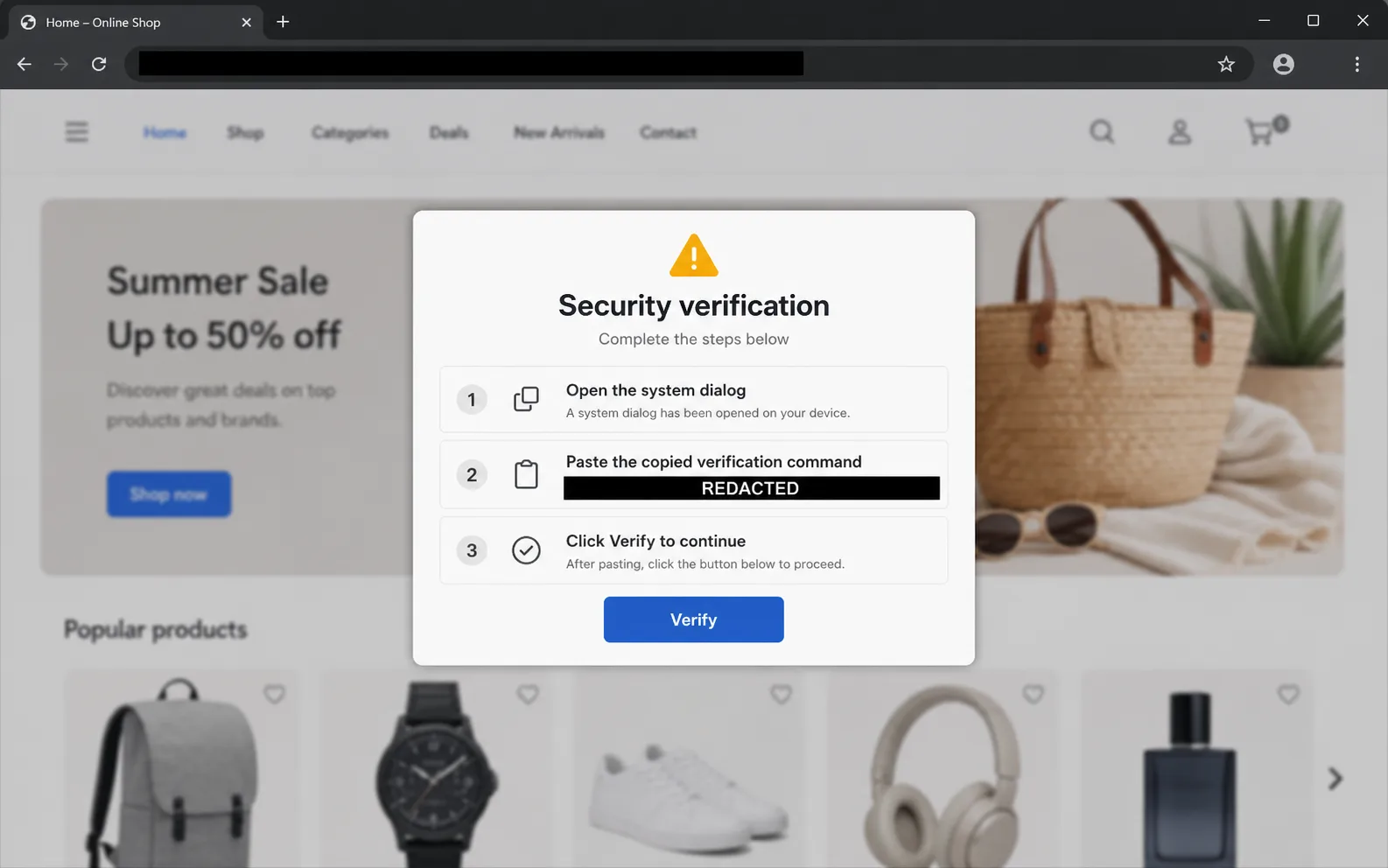
Sanitized reconstruction from the 30-site ClickFix incident, not original client evidence. The domain and the command are redacted. If your site shows anything like this, it is compromised.
Confirm it safely
How to check whether your site is serving the lure
- 01
Use a clean, disposable browser profile
Open a private window or a separate browser profile on a machine you can afford to inspect afterwards. Do not use your administrator browser session.
- 02
Arrive the way victims arrive
Visit via a Google search result for your site, on both mobile and desktop, from a different network if possible. Cloaked infections often show nothing on direct visits.
- 03
Watch for the overlay, not just the content
The page content usually loads normally underneath. Look for a verification panel, a fake error, or clipboard-permission prompts.
- 04
Capture, do not interact
If the panel appears, screenshot it, copy the URL, note the time — and close the tab. Never follow its instructions, and never paste what it put on your clipboard.
- 05
Check reports from others
Visitor complaints, Search Console security issues, and Safe Browsing warnings often surface the lure before the owner sees it.
Why one deletion fails
The lure is fed from several hiding places at once
In the multi-site ClickFix incident we documented, the same infection lived in four layers simultaneously: obfuscated PHP files on disk, base64-encoded script content in the WordPress database, an injected call in the active theme’s functions.php, and a .user.ini directive that loaded malicious code before WordPress even started.
Any surviving layer can rebuild the others. Deleting the one file a scanner flags, or clicking “clean” in a plugin, leaves the site looking fixed while the mechanism that serves the lure is still in place — which is why these infections so often “come back” days later.
Diagram · One page view, start to finish
Where the ClickFix chain had a chance to run on each request.
- 01 · Visitor’s browser A visitor requests a page An ordinary page view on the compromised site; nothing looks wrong yet.
-
02 · PHP startup
An injected file loads before WordPress
auto_prepend_file in .user.iniPHP reads the per-directory .user.ini and parses the named file before index.php runs. - 03 · Files on disk Obfuscated PHP loaders Unexpected or modified PHP files, their behaviour hidden behind layered encoding and generated strings.
-
04 · Active theme
functions.php invokes the chain
wp-content/themes/<theme>/functions.phpAn automated call connected to the chain runs during normal WordPress request handling. -
05 · Database
Script content stored as base64
wp_optionsEncoded script fragments and loader data persist in options records, outside every theme and plugin file. - 06 · Visitor’s browser A fake verification page appears When its conditions match, the page shows a fake CAPTCHA or recovery step instead of the content.
- 07 · Visitor’s own computer The visitor is told to run a command The lure asks them to paste a command into Run or a terminal; the payload then runs on their device, not the server.
Remove one layer and any of the other three can put the chain back: the reason a single-file cleanup comes back.
What cleanup requires
Treat it as an incident, not a scan result
- Preserve evidence first: timestamps, logs, a database export, and copies of the malicious artifacts.
- Stop visitors receiving the lure — restrict delivery before cosmetic cleanup.
- Rebuild WordPress core, plugins, and themes from trusted sources instead of editing infected files.
- Inspect and clean the database options, the active theme, .user.ini and PHP configuration, and scheduled tasks.
- Rotate hosting, WordPress, database, and deployment credentials from a clean device.
- Retest after caches expire and normal traffic resumes — a clean homepage minutes after cleanup proves little.
Common questions
Common questions about fake verification pages
Is this Cloudflare’s fault, or a problem with my Cloudflare account?
No. The lure imitates Cloudflare’s look because visitors trust it. The panel is injected by malware on your website; your Cloudflare account is usually not involved, though its credentials should still be rotated as a precaution.
A visitor says they pasted the command. What should they do?
They should treat their computer as compromised: disconnect it, run reputable endpoint protection, and change important passwords from a different device. Their exposure came from the pasted command, not from merely viewing your site.
Will clearing my cache or updating plugins remove it?
No. Caching can affect when the lure appears, and updates close some entry paths, but neither removes the injected files, database records, theme calls, or PHP directives that serve the panel.
I cannot see the fake page myself. Could the reports be wrong?
Possibly, but do not assume so. These infections routinely show the lure only to certain visitors. Verify using a clean browser profile and search-result entry as described above, and check Search Console for security issues.